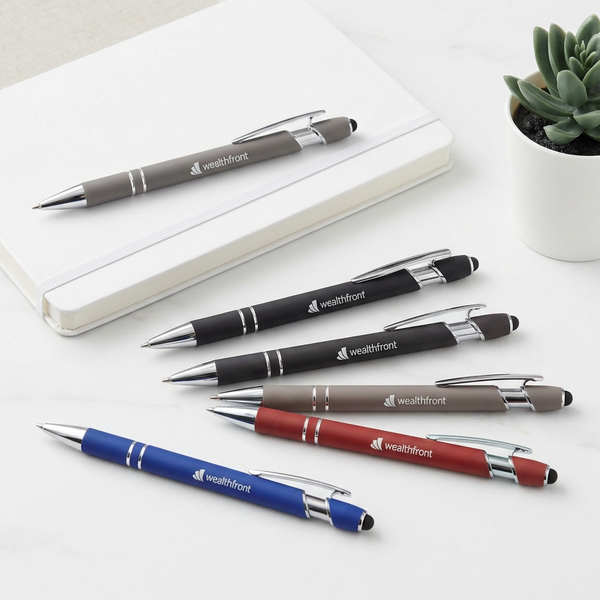
Something has changed on our order desk. More and more of the logos our customers upload were made with AI. It might be a bakery owner who typed a few sentences into ChatGPT, a church volunteer who tried a few ideas in Google Gemini, or a new landscaping company that finished its logo in Canva. A few hours later, they're ordering custom pens with a logo that didn't exist that morning.
We think that's great news, especially for small businesses, schools, churches and non-profits that never had a budget for a designer. In this guide we'll cover why an AI logo works so well on custom pens, which AI tools do the best job, and the part most people don't think about until they order: getting the logo to fit and print sharp on a pen, where the space is roughly 1.8 inches wide and up to about 0.4 inch tall, depending on the pen.
Why AI Logos Are a Great Fit for Custom Pens
Not long ago, getting a logo meant hiring a designer, waiting a few weeks and paying for each round of changes. That's still a good route for a lot of businesses. Now there's another one, and it's open to anyone with a phone or a computer.
- It's fast. You can go from a blank page to a logo you like in an afternoon.
- It costs little or nothing. All three tools we cover below have free plans you can start with.
- You can try lots of ideas. Ask for ten versions, pick the two you like and keep refining them. Nobody bills you by the hour.
- It's made for one-time events. Family reunions, fundraisers, weddings, retirement parties and church anniversaries can each have a logo made just for the day.
A pen is also one of the best places to put a brand-new logo. Pens get used every day, passed around, left on counters and carried home. Your logo goes wherever they go.
The Best AI Tools for Designing a Business Logo
There are dozens of AI logo makers, but these are the three we recommend, and each one is good at something different.
ChatGPT (GPT Image)
ChatGPT can create images right in the chat. OpenAI calls the model behind it GPT Image, and it's very good at following detailed instructions, including spelling out your business name. You describe what you want in plain words, look at the result and ask for changes the same way you'd talk to a designer: make the icon simpler, use a bolder font, drop the tagline.
Best for: turning a rough idea into a first draft and trying many directions quickly. Always read the lettering carefully, though. AI tools are much better at spelling than they used to be, but they still slip a letter now and then.
Google Gemini (Nano Banana)
Nano Banana is the nickname for the image model inside Google's Gemini app. It can design a logo from a description too, but where it really shines is editing a picture you already have. Upload a hand sketch, a photo of your shop sign or an old logo, and ask Gemini to clean it up, turn it into one solid color or simplify the details. It's good at changing just the part you ask about while keeping the rest.
Best for: modernizing a logo you already have, or turning a sketch on a napkin into a clean design.
Canva
Canva isn't only an AI tool, and that's its strength. You can start from one of its logo templates, create artwork with its AI image tools, or upload a logo you made in ChatGPT or Gemini. Then set your business name in a real font and line everything up. Canva also has a vectorizer that turns a PNG or JPG into an SVG file, which matters for printing (more on that below).
One thing to know: downloading a logo with a transparent background, or as an SVG file, is available on Canva Pro, Teams, Education and Nonprofits plans. If you run a non-profit, check whether you qualify for Canva's nonprofit program.
Best for: finishing your logo, adding your business name and downloading files you can print.
Which One Should You Use?
Honestly, more than one. A good workflow is to explore ideas in ChatGPT or Gemini, then finish the logo in Canva. Use whatever gets you to a simple, bold logo you're proud of, then follow the steps below to get it ready for a pen.
A Prompt That Works Well for Pen Logos
The words you type make a big difference. Here's a prompt you can copy into ChatGPT or Gemini. Just fill in the parts in brackets:
Design a simple, flat logo for [business name], a [type of business] in [your town]. Use one color only: solid black on a plain white background. No gradients, shadows, outlines, photos or tiny details. Make it a wide, horizontal layout, about four or five times wider than it is tall, with an icon on the left and the name on the right in bold, easy-to-read letters.
Here's why it works. One solid color is how pens are printed. A wide shape fits the space on a pen barrel. Bold letters stay readable when the logo is shrunk to less than half an inch tall. If you also want a square version for your website or social media, ask for that separately.
How to Get Your Logo Ready to Print on a Pen
A pen barrel is a small, curved space. These six steps make the difference between a crisp imprint and a fuzzy one.
1. Know Your Imprint Area
The imprint area is the space on the barrel where your logo and text go. On most of our plastic pens it's about 1.8 inches wide and 0.3 to 0.45 inch tall. Metal pens are slimmer, so their imprint area is closer to a quarter of an inch tall. Here are a few popular pens:
| Pen | Imprint area | Imprint |
|---|---|---|
| Xpress Odyssey | 1.8" × 0.45" | Printed |
| Xpress Sync | 1.8" × 0.35" | Printed |
| Xpress Gavia | 1.8" × 0.375" | Printed |
| Xpress Soft Touch Stylus | 1.8" × 0.25" | Laser engraved |
| Xpress Colossal | 2" × 0.4" | Printed |
| Classic Matte Twist | 1.5" × 0.3" | Printed |
| Xpress Ultra Slim Metal | 1.8" × 0.2" | Laser engraved |
You'll find the imprint area for every pen in the specs on its product page.
2. Go Wide, Not Tall
Because the space is long and short, the shape of your logo matters more than its size. A horizontal logo can use the whole width of the imprint area. A square or tall logo has to shrink until it fits the height, so on a pen with a 0.35-inch imprint area, a square logo ends up about a third of an inch wide, with most of the barrel left empty. If your logo is square, add your business name or phone number next to it as text to fill the space.
3. Use One Solid Color
Every imprint we do is one color. On plastic pens, we print in the imprint color you choose. Metal pens are laser engraved, which shows up silver or gold depending on the pen. If you upload a multicolor logo, it's printed in your one imprint color, so anything that depends on color, like gradients, shadows and subtle color changes, gets lost. Your logo needs to work as solid shapes in a single color.
A quick test: print your logo in black and white on an office printer. If it still looks right, it will look right on a pen.
4. Keep the Details Bold
At less than half an inch tall, fine lines, small taglines and tiny letters inside an icon can fill in or disappear. Thicken thin lines, drop the tagline from the logo itself and stick to one or two simple shapes. Before you order, print your logo on paper at its real size, about 1.8 inches wide, and look at it from arm's length. That's how people will see it.
5. Plan Your Logo and Text Together
You can pair your logo with a few lines of text, like your phone number, website or slogan. When you choose Logo and text, your logo always prints to the left of the text, and the two share the imprint area. Most of our pens fit up to four lines of text, some fit two or three, and the Xpress Ultra Slim Metal fits one, with up to 30 or 35 characters per line depending on the pen. The more lines you add, the smaller each line gets, so short and simple reads best.
6. Send the Right File
AI tools create pixel images, usually PNG or JPG files. They look sharp on a screen, but they're made of tiny squares, and they can turn blurry or jagged when they're resized for print. For the cleanest imprint, we prefer vector files, which are made of lines and shapes instead of pixels:
- .AI (Adobe Illustrator) files
- .EPS files
- .SVG files
- High-resolution PDF files
Black and white is best. To turn an AI logo into a vector file, you have a few options:
- In Canva: use the vectorizer to turn your PNG into an SVG, or rebuild the logo with Canva's shapes and fonts and download it as an SVG or PDF.
- In Adobe Illustrator: Image Trace turns a PNG into vector shapes. Inkscape, a free program, does the same thing with Trace Bitmap.
- Send it to us as is: upload the largest, sharpest PNG you have. If we can't print it as is, we can redraw a logo within reason at no extra charge, as our Artwork Guide explains.
Whichever route you take, download the largest size the tool offers, and crop away any extra background or watermark around the logo. Not sure your file will work? Email it to graphics@pensxpress.com and our team will take a look.
What Happens After You Upload Your Logo
On the pen's product page, choose Logo only or Logo and text, upload your file, then pick your imprint color and add any text lines. Our graphic designers arrange your logo and text to fit the pen's imprint area, as large as the space allows. If you'd like to see the layout before we print, ask for a free proof in the Special instructions box when you order.
Our team in Matawan, New Jersey prints every order in-house, so the people who check your artwork are the same people who print it. If you're not sure which pen to choose, order a few sample pens and hold them next to a printout of your logo. Our Ordering Guide walks through every step of placing an order.
A Few Things to Check Before You Use an AI Logo
- Make sure it's yours. AI tools learn from huge numbers of images, so a logo can end up looking a lot like a brand that already exists. Search your business name and look at your competitors' logos before you commit. When you place an order, you confirm that you have the right to print the design you send us.
- Check the spelling. Read every letter of your business name, phone number and website, then have someone else read it too. We print exactly what you send.
- Planning to trademark it? The rules on who owns AI-made images are still being worked out, and some design tools, Canva included, have their own rules about trademarking logos built from their templates. If the logo will be central to your brand, talk to a trademark attorney before you invest in it.
Frequently Asked Questions
Can you print a logo I made with ChatGPT, Gemini or Canva?
Yes. We print AI-made logos all the time. Choose Logo only or Logo and text on any pen, upload your file and our team will take it from there.
What size should my logo be for a pen?
About 1.8 inches wide and 0.3 to 0.45 inch tall on most plastic pens, and 0.2 to 0.27 inch tall on metal pens. A wide, horizontal logo uses that space best.
What file type should I send?
An .AI, .EPS or .SVG file is best, or a high-resolution PDF, in black and white. If all you have is a PNG or JPG from an AI tool, send the largest version you have.
Can my logo print in more than one color?
No. Every imprint is one color. Plastic pens are printed in the imprint color you choose, and metal pens are laser engraved.
Can you add a tagline under my logo?
A tagline usually reads better as its own text line next to the logo, where it's set in a clean font at a readable size, than as tiny lettering inside the logo.
Ready to See Your Logo on a Pen?
Wherever your logo came from, a pen puts it in front of people every day. Browse our best sellers to find a pen with the right imprint area for your logo. Questions about your artwork? Email graphics@pensxpress.com and we'll help you get it right.